Moving from Spreadsheets to an ERP: A Guide
Thinking of moving from spreadsheets to an ERP? See the warning signs, a step-by-step migration plan and the mistakes that derail small business projects.
You should move from spreadsheets to an ERP when the time spent reconciling files starts to cost more than the system would, or when errors begin to reach customers. The move does not have to be a big-bang project. Done in stages, it can take weeks rather than years. This guide covers the warning signs, a practical plan and the traps to avoid.
Signs that spreadsheets are holding you back
Spreadsheets are brilliant tools, and there is no shame in running a business on them early on. The trouble starts when they become your system of record. Watch for these signals:
- Multiple versions of the truth. “Stock_final_v3_JOHN.xlsx” is a warning in itself.
- Key-person risk. Only one colleague understands the formulas, and nobody dares to touch them.
- Re-keying. The same order is typed into a quote, a stock sheet, an invoice and an email.
- Slow answers. Simple questions such as “who owes us money?” or “what is on order?” take an afternoon.
- Silent errors. A broken formula or an overwritten cell goes unnoticed until a customer complains.
- No audit trail. You cannot tell who changed a price or when.
If three or more of these sound familiar, it is time to plan the move.
What an ERP gives you that a spreadsheet cannot
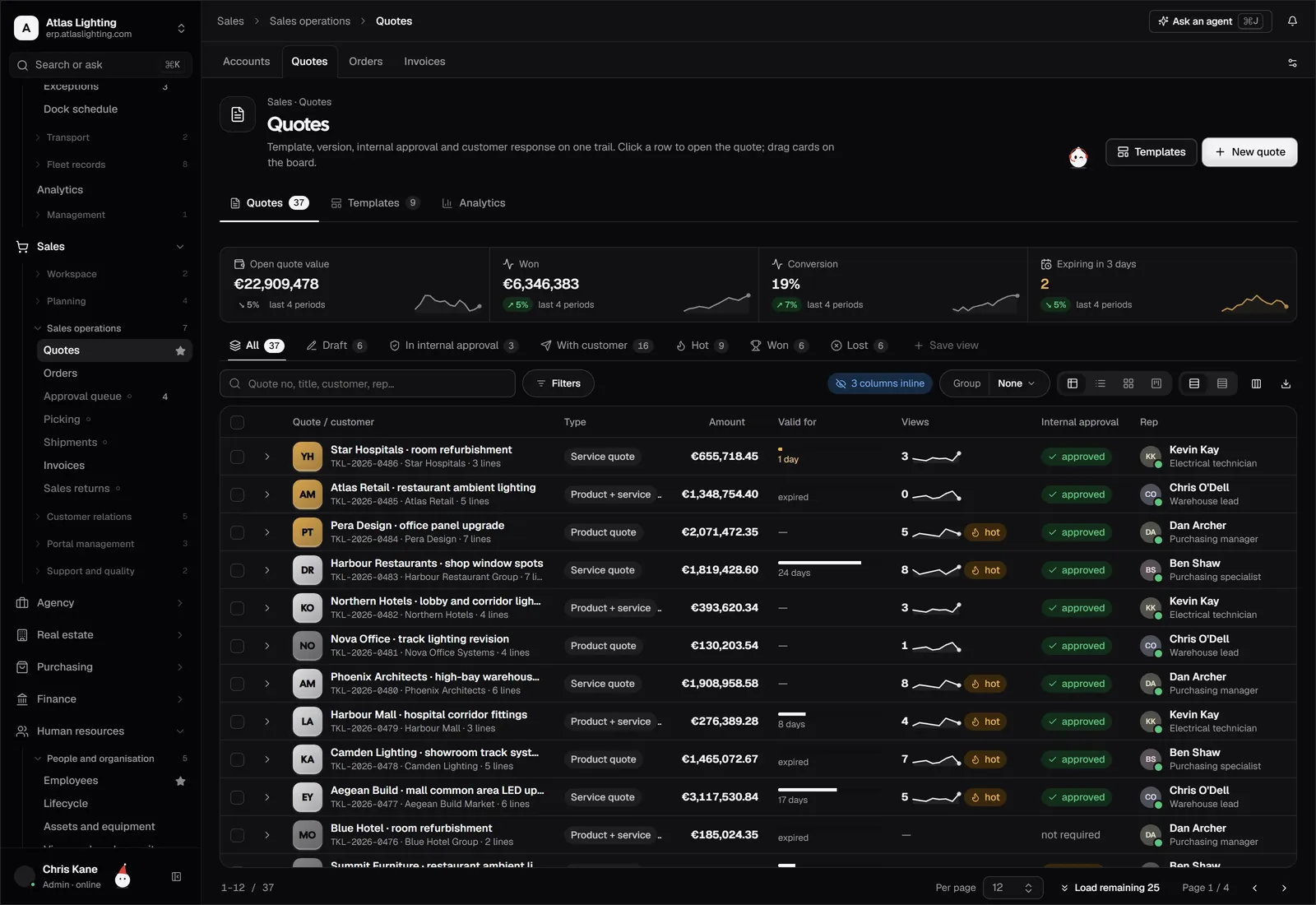
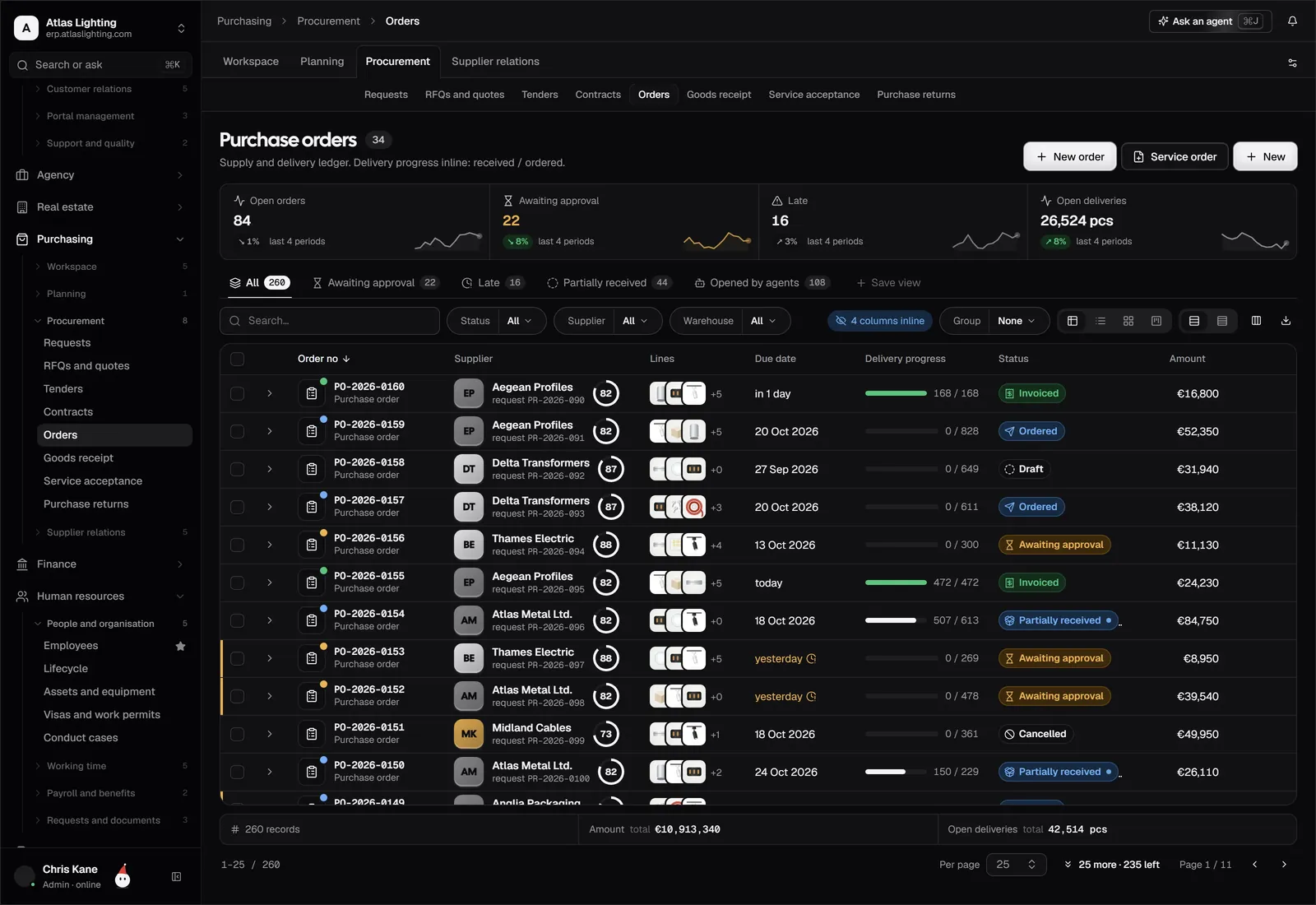
An ERP (enterprise resource planning) system stores your operations in one shared database. A sale, a purchase, a stock movement and an invoice all refer to the same records. That brings several benefits:
- One source of truth. Everyone sees the same stock, prices and balances.
- Controls. Permissions decide who can see or change what, and every change is logged.
- Connected workflows. A confirmed order can reserve stock, flag a shortage and prompt a purchase.
- Reporting without rebuilding. Reports update from live data rather than from a file somebody refreshes.
This does not mean spreadsheets disappear. Teams still use them for analysis and one-off modelling. They just stop being the place where the business actually lives.
A step-by-step migration plan
1. Map what you actually do
Write down your core flows: quote to cash, procure to pay and, if you make things, plan to produce. Draw them as simple lists of steps. You will find duplicated effort, and that is where the biggest wins are.
2. Decide the first phase
Do not migrate everything at once. A sensible first phase for many companies is products, customers, suppliers, inventory and sales or purchasing. Finance and production can follow once the master data is trusted.
3. Clean your data before you move it
This step is the one most often skipped, and it decides whether the project succeeds. Before importing:
- Remove duplicate customers and suppliers.
- Give every product a unique code and consistent unit of measure.
- Count your stock physically so opening balances are right.
- Agree opening balances for receivables and payables with finance.
4. Import a sample first
Load a small, representative slice, such as 50 products and 20 customers, and check the results by hand. Fixing a mapping problem on 50 rows is far cheaper than on 50,000.
5. Run in parallel, briefly
For a short period, keep the old spreadsheets alongside the new system and compare results. Set an end date in advance, otherwise parallel running becomes permanent and people drift back to the old files.
6. Train by role
The storekeeper needs to learn goods receipt and stock counts, not the general ledger. Short, role-based sessions with real examples beat a single all-hands demo.
7. Switch off the old files
Make the spreadsheets read-only on a stated date. Otherwise someone will keep updating them and your data will split again.
Common mistakes to avoid
| Mistake | Why it hurts | Better approach |
|---|---|---|
| Copying every old spreadsheet column | You recreate old problems | Migrate only what you will use |
| Skipping data clean-up | Bad data in, bad reports out | Allocate real time to it |
| Customising everything | Slows setup and upgrades | Use standard flows first |
| No internal owner | Decisions stall | Name one project owner |
| Training only managers | Daily users resist | Train the people doing the work |
Choosing a system that will not overwhelm you
Small teams often fear that an ERP means months of consultants and a rigid process. The right choice depends on size and complexity, but a few criteria help:
- It covers the modules you need now, with room to add others later.
- Setup does not require writing code.
- Permissions are granular, so people see only what they need.
- You can export your data at any time.
- AI features are transparent: any assistant works within set permissions and asks for approval on important actions.
FAQ
How long does it take to move from spreadsheets to an ERP?
It depends on how clean your data is and how many modules you start with. A focused first phase is typically measured in weeks, while a full rollout across every department takes longer. Plan for data clean-up to take as much time as configuration.
Will my team resist the change?
Some people will, especially if the spreadsheet is their personal tool. Involve them early, show how the new system removes re-keying and name a champion in each team.
Can I import my existing Excel files?
Most ERP systems support importing from CSV or Excel for customers, suppliers, products and opening balances. Check the import tools during the demo and test them with your own files.
Do I need an ERP, or just better spreadsheets?
If you have a single user and simple needs, better spreadsheets may be enough. Once several people edit shared data or orders flow across departments, a proper system pays for itself in fewer errors and faster answers.
Where to start
Dika Ops is an AI-native ERP built for small and mid-size companies, with sales, inventory, finance and more in one system. It is in closed beta, and you can join the waitlist to hear when early access opens.